Programming a weld robot at the pendant means the robot is stopped while a person jogs it to each point. For a shop running a hundred different weldments a month, programming time can exceed welding time. Offline programming fixes that only if it answers three questions correctly: where is the joint, can the arm hold the torch properly there, and is the seam accessible at all. NativeCAD answers them from the geometry, because it is a CAD kernel with the robot cell built on top.
What integrators do with NativeCAD
- Find weldable seams from a STEP file. Joints come from real B-rep face identity, and inside corners are told apart from outside ones.
- Check reach and access per seam. Can the arm hold the torch at the right angle and standoff, and is the seam visible or buried?
- Lay out the cell. Robot, positioner, fence and fixture are CAD bodies, so clearances are measured.
- Coordinate two arms and a positioner and prove the arms never touch.
- Design the fixture with locators, clamps and a clear torch path.
Pick a seam, run the arc
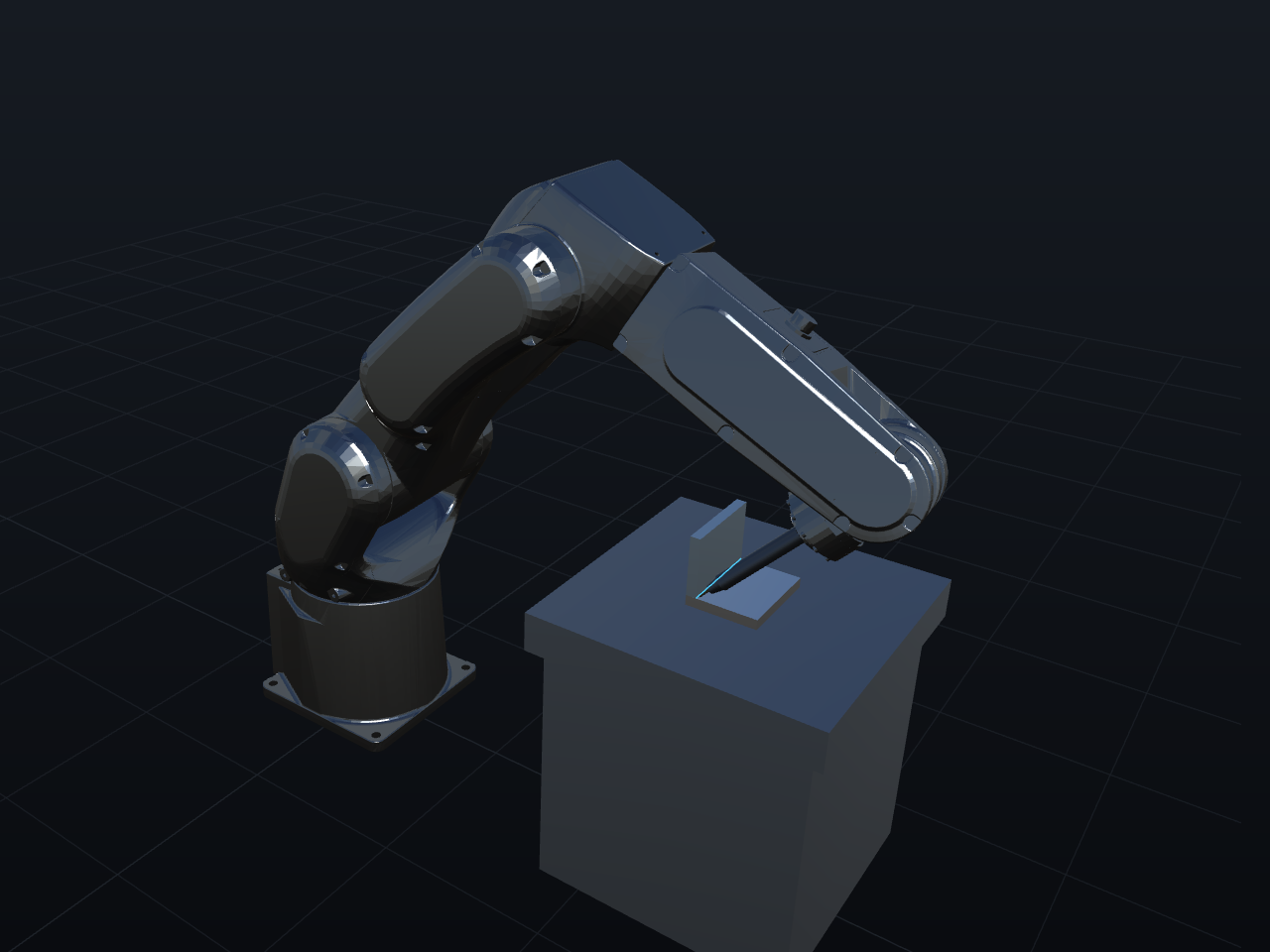
Open the FANUC weld cell in your browser: click an edge, get a checked torch path, and watch the bead run. When a joint fails, the cell says which test failed. A seam that is buried under a flange is a different problem from one that faces away from the arm, and they have different fixes. Usually the fix is to turn the part over, which is what a fabricator would do.
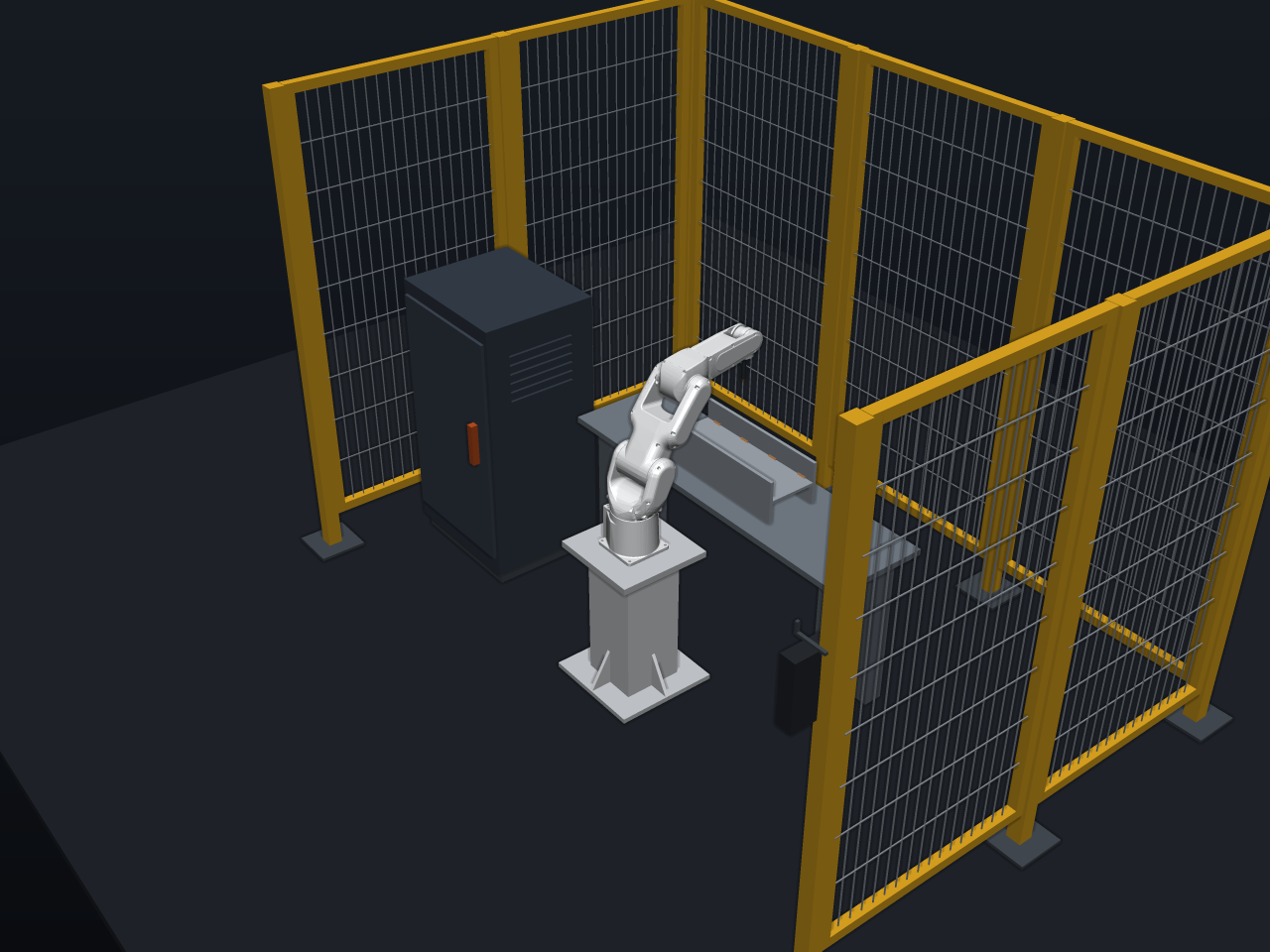
A fenced cell where every object is a CAD body
The fenced robot weld cell is a layout made of real solids, so the question "does the arm clear the fence at full reach" has a measured answer. The FANUC arm under constraints shows an LR Mate 200iD driven through kinematic mates.
Two arcs, one part, one positioner
The dual-arm ferris wheel positioner splits the seams between two arms and proves the arms never touch. The end-cap weld rig turns a circumferential weld into one revolution: at 7 mm/s, one revolution is exactly one weld. The assembly line demo has two arms weld a bracket and drop it in the tray.
Fixtures with a clear torch path
A weld fixture has to hold the part and stay out of the way. The weld fixture plate uses 3-2-1 locators, force-closed clamps and a clear torch path, and the CNC fixture plate is parametric to the last hole, so the next part family is a change of numbers.
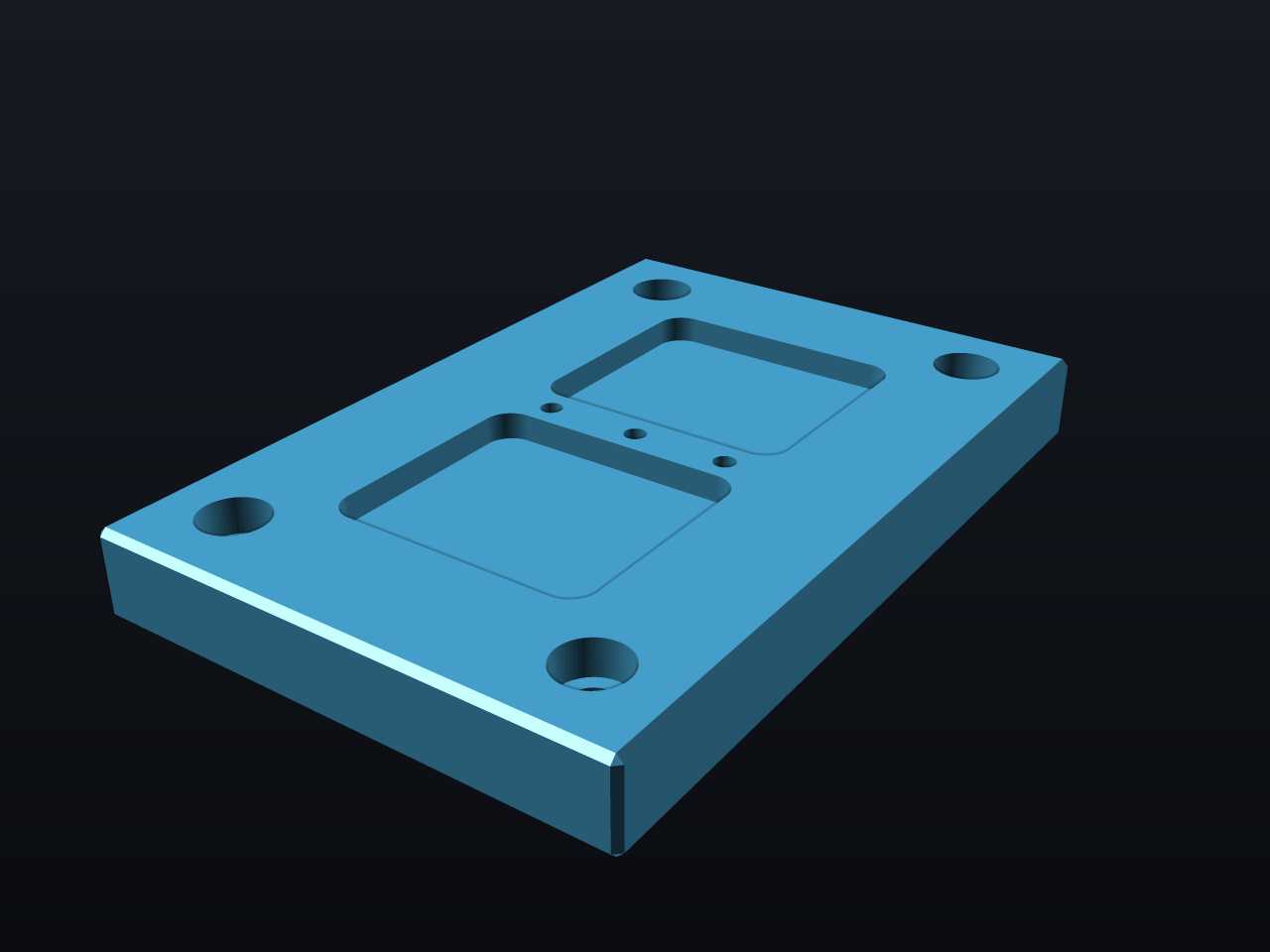
The seam you click and the seam the robot welds are the same object. The robot cell reads the same faces and edges the CAD kernel uses for everything else, so there is no translation step where a joint can go missing.
What to ask your assistant
Import this weldment and list every fillet joint the robot can reach.
    Which seams are buried, and what orientation fixes them?
    Lay out a cell with one arm, a single-axis positioner and a 2 m fence clearance.
    Write the weld schedule for this assembly.
The DFM knowledge packs include robotics and desktop-robot rules, and every tool the assistant can call is listed in the MCP tool reference.
Questions robot integrators ask
Can NativeCAD do offline programming for weld robots?
NativeCAD finds weldable joints from the CAD model, checks torch reach and seam access for each one, plans the path and simulates the bead. You can try it in the browser with the FANUC weld cell demo.
Does it need the original CAD file?
It needs solid geometry. Import a STEP file from any CAD system; NativeCAD also reads Parasolid, IGES, SAT and SolidWorks SLDPRT.
What does NativeCAD cost?
A NativeCAD MCP / Modeler seat is $200 per seat per year, or $20 per seat per month, with no metered usage. The evaluation needs no key and no sign-up; export, save and import need a seat key. See pricing.
Does my geometry leave my computer?
NativeCAD runs on your own machine: the kernel and solvers run locally and licence validation is fully offline. Files opened in the browser modeler are never uploaded. Your AI assistant sees what you ask it to work on, under your agreement with its provider.
NativeCAD in other industries
- NativeCAD for Drone Manufacturers: Airframe, Airflow and Every Revision Checked
- NativeCAD for Automotive: Drivelines, Tolerance Stacks and Thermal Parts Your AI Can Check
- NativeCAD for Motorsport: More Design Iterations Between Races
- NativeCAD for Aerospace and Turbomachinery: Blades, Casings and Qualification Reports
- NativeCAD for CNC Job Shops: From the Customer's Drawing to a Checked Solid
- NativeCAD for Sheet Metal Fabricators: Flat Patterns, Bend Checks and Drawings by Conversation
- NativeCAD for Metal Additive Manufacturing: Design for the Printer, Then Prove the Part
- NativeCAD for 3D Printing Services and Product Designers: Fuller Builds, Parts That Work Off the Bed
- NativeCAD for Foundries and Casting: Part In, Mould Out
- NativeCAD for Electronics Hardware Teams: Check the Board and Fit the Enclosure Before You Build
- NativeCAD for Furniture Makers and Woodworkers: A Desk Designed in Ten Messages
- NativeCAD for Game Studios and 3D Asset Teams: Engineering-Grade Models as Runtime Assets
- NativeCAD for Simulation Teams: FEA and CFD Set Up and Run by the Agent That Built the Part
- NativeCAD for Defense and Regulated Manufacturing: AI-Built Parts Inside Your Own Boundary
NativeCAD is CAD, FEA and CFD software your AI assistant drives over MCP, from Claude, Cursor or your own agent, and in the browser. Every part is an exact B-rep solid that exports as STEP AP242. See what it does, browse every demo, check pricing, or install it.